MyGBC Self-Service Center
Get Started
Once your application for admission is processed, you will be provided a GBC email (username) for signing on to the MyGBC Self-Service Center. – Typically within 24 hours. Starting Fall 2026 MyGBC will be accessible via Myapps.
- MyGBC Self Service Center login will be still be available.
- To view the GBC Class Schedule
- For drop dates and other valuable information, view the GBC Important Dates Calendar
- Myapps requires creating your Multi-factor authorization (MFA), for assistance please review the Myapps guide
- Once logged into Myapps, you may access your MyGBC (Self-Service Center) by selecting the MyGBC app.
There, you can:
- Learn the name of your advisor
- Enroll in classes
- Learn your financial aid status
- Pay for classes
- Obtain your grades
- View your unofficial transcript
- Keep your contact information current
- and more...
For ease of navigation within the MyGBC Self-Service Center, please use the Mozilla Firefox or the Google Chrome browser or Edge. For more information
Help with the MyGBC Self-Service Center.
MyGBC Student Center FAQ
As a new semester begins at Great Basin College, we offer information and answers to frequently asked questions about the MyGBC Self-Service Center.
The MyGBC Self-Service Center provides students, faculty and staff with improved online information and self-service capabilities 24 hours a day.
The system allows students to access personal data, register for classes, check grades and much more. It will also make it easier for faculty and staff to input grades, communicate important information and assist students with their business needs.
MyGBC is Great Basin College's version of the system used by all Nevada System of Higher Education (NSHE) institutions. The system uses User IDs for both students and employees that are universal across NSHE institutions.
For assistance with MyGBC, please read the MyGBC Self-Service Center Frequently Asked Questions (FAQ). If these do not answer your questions, please contact the MyGBC Helpdesk.
Students who have actually enrolled in GBC during the last three years will not need to re-apply for admission to enroll current/future semester classes.
Others, including former students, will need to apply or re-apply for admission.
Important Note
If you want to enroll in a late-starting class, and if you first applied for admission after the beginning of the normal semester, you will need to contact the Admissions Office at 775-327-2059 to have your account activated. For example, if you applied October 1 for a Fall class beginning in November, you will need to phone the Admissions Office, since the Fall term formally begins in late August.
For your MyGBC User ID - Please contact the Helpdesk at 775-327-2170 or send an email to helpdesk@gbcnv.edu
You should have received your initial password for logging into MyGBC by email at the same time as you received your User ID -- that is, shortly after applying for admission.
You will not be able to change this temporary password and will only be used for initial enrollment into classes. Once you enroll into credit classes, you will receive an email with your GBC email (username) and instructions with your default password.
Password Security is very Important!
Passwords are used to protect your user accounts so it is important to create strong passwords and to keep those passwords secure. If you share your password, you’re sharing your identity. Here are some helpful tips on keeping your passwords secure:
- Do not tell others your passwords – including co-workers or supervisors.
- Protect any recorded passwords - do not leave them anywhere you would not leave the information they protect. Do not write it down at all, if possible.
- Do not check “remember my password” on any website.
- Never provide your password over e-mail or based on an e-mail request – the Help Desk will NEVER request your password via e-mail. Many of these requests can appear to come from a legitimate source but are fraudulent.
- Change your password regularly – just like fall and spring cleaning, about every 6 months.
- Change your password if you have reason to believe it has been compromised.
- Do not type passwords on computers that you do not control – such as internet cafes, computer labs, airport lounges, or others that have open WiFi access.
- Do not let others use your account – this includes you logging in for them.
- Be sure no one is watching when you enter your ID and password.
- Be sure to log out of all programs prior to closing the web browser and be sure to close the web browser before logging off the computer. Do not walk away from a computer until you are certain that you have logged off.
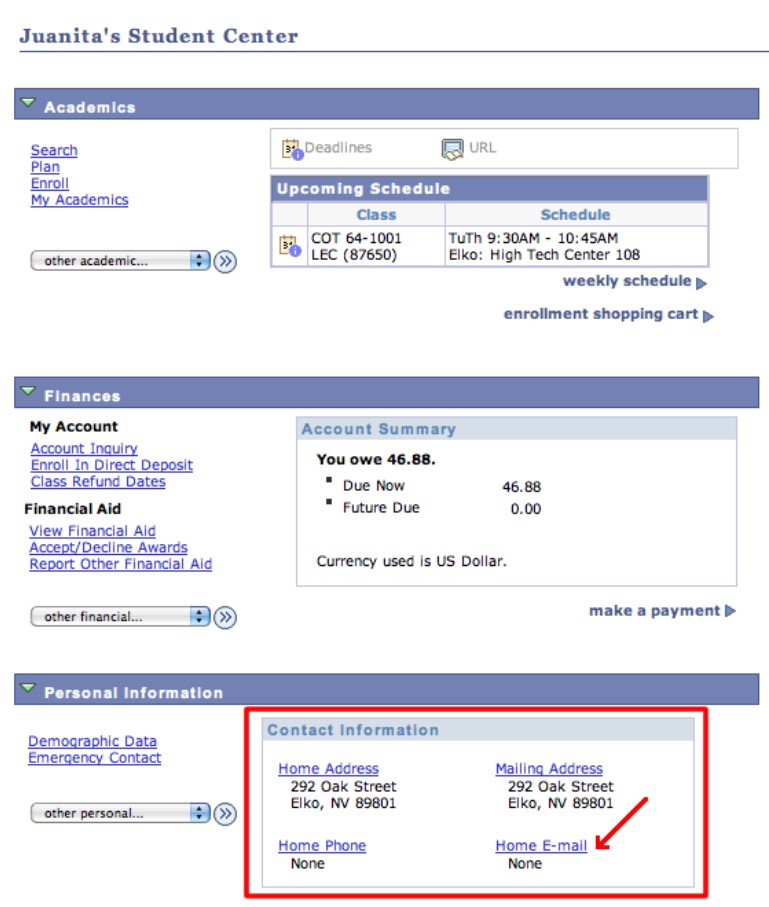
Changing your mailing, physical, or e-mail address is easy using MyGBC. Follow these simple steps:
- Go to the MyGBC Self-Service Center and log in.
- Click the Student Center button.
- Scroll down to the Personal Information section to make changes.
Viewing the Great Basin College class schedule is easy in the MyGBC Self-Service Center. The MyGBC class schedule is searchable, shows the number of seats currently available for the class, presents valuable information such as course number, instructor, days, times, room, class status, and more!
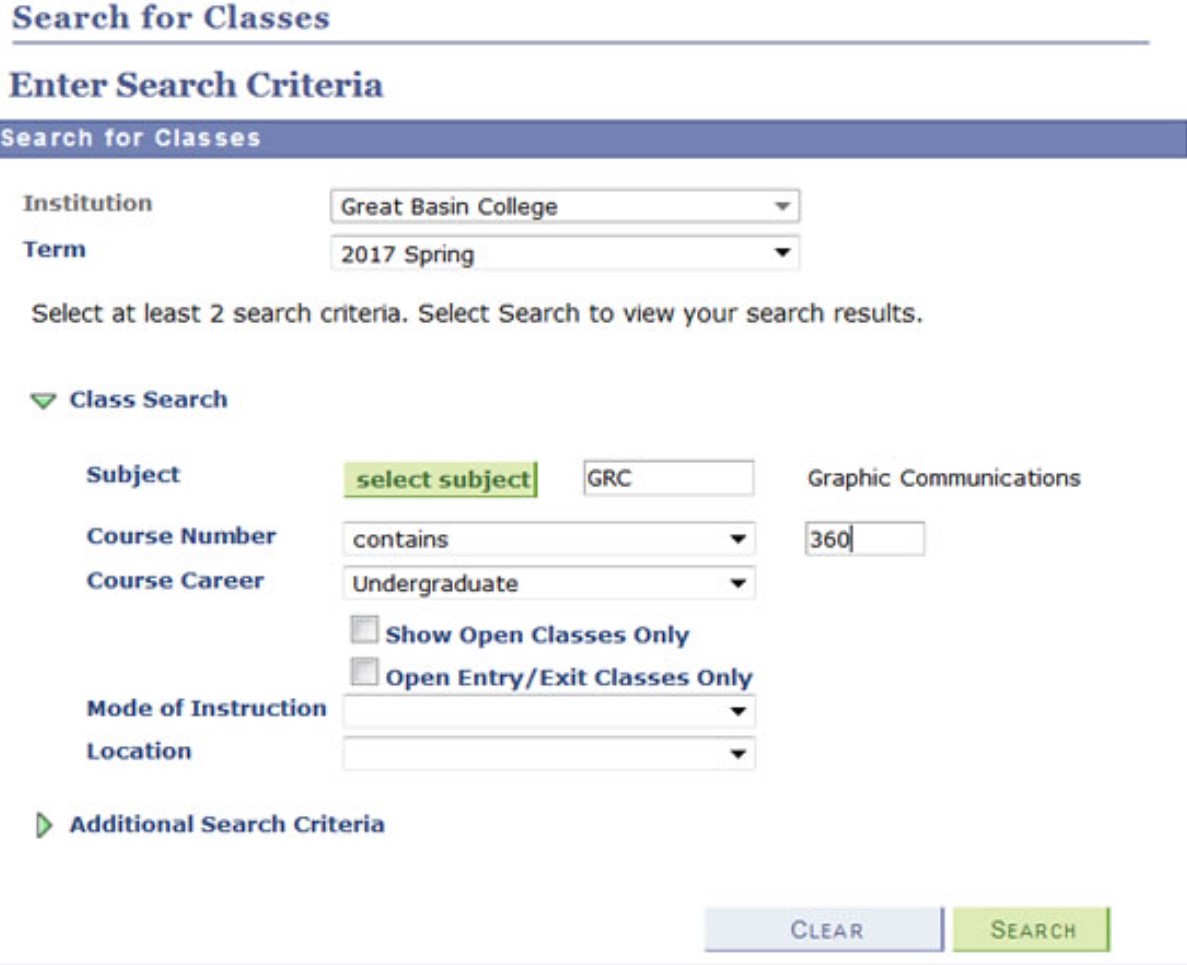
Searching
-
Begin Search
- Select "Great Basin College" for the Institution
- Select the available "Term" you are interested in
- Click the "select subject" button or enter a subject abbreviation
- Enter the course number or leave blank to see all classes for the subject
- Click "Additional Search Criteria" to filter for specific days, times, locations, etc
- Click the "Search" button when you are ready to search.
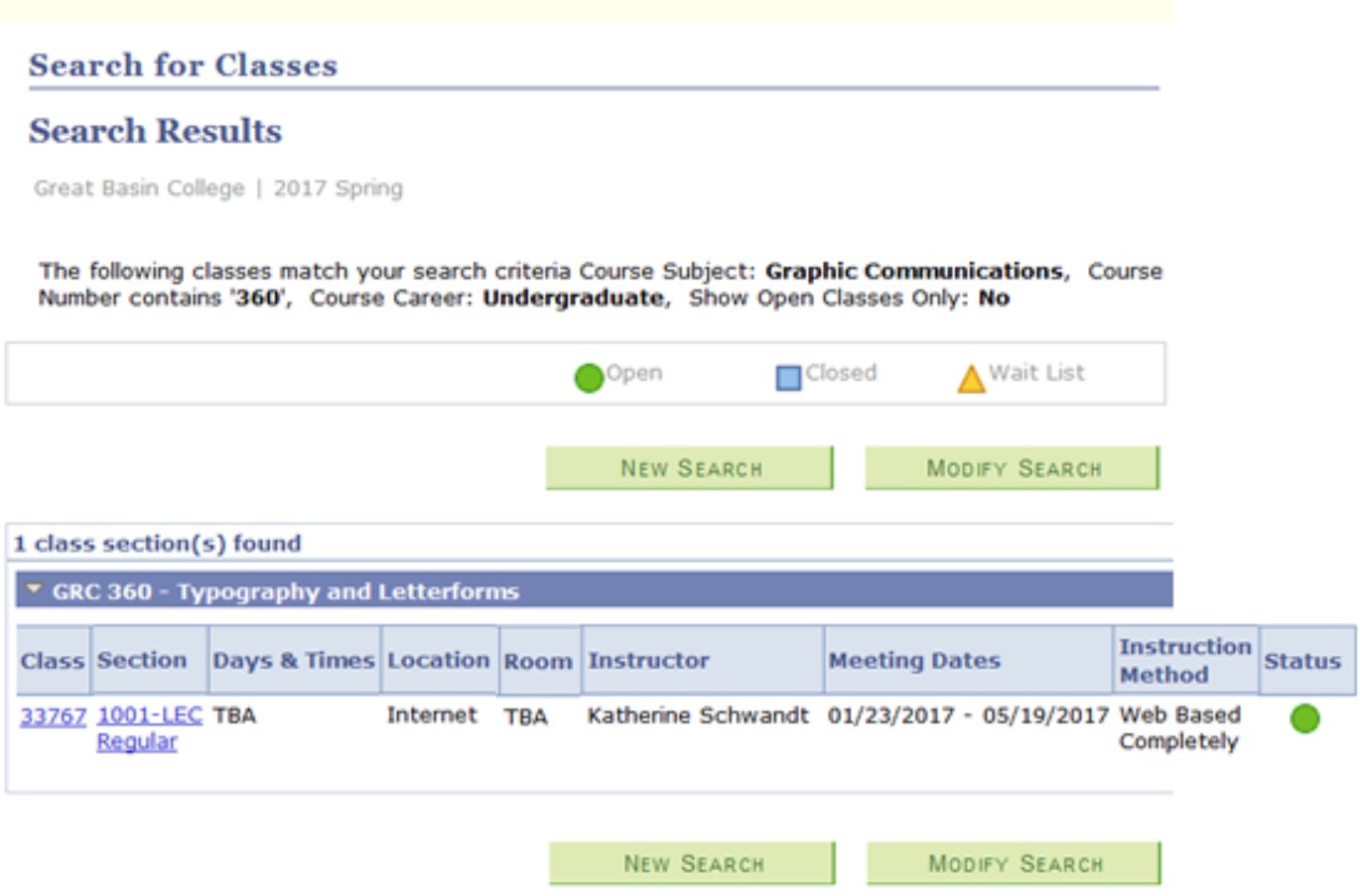
- Results of Search
Your search results will now be displayed.
Click the "Section" link under the "Section" column of the class section you are interested in for specific class detail information. Depending upon your search criteria, you may retrieve more than one "Search for Classes" results.
-
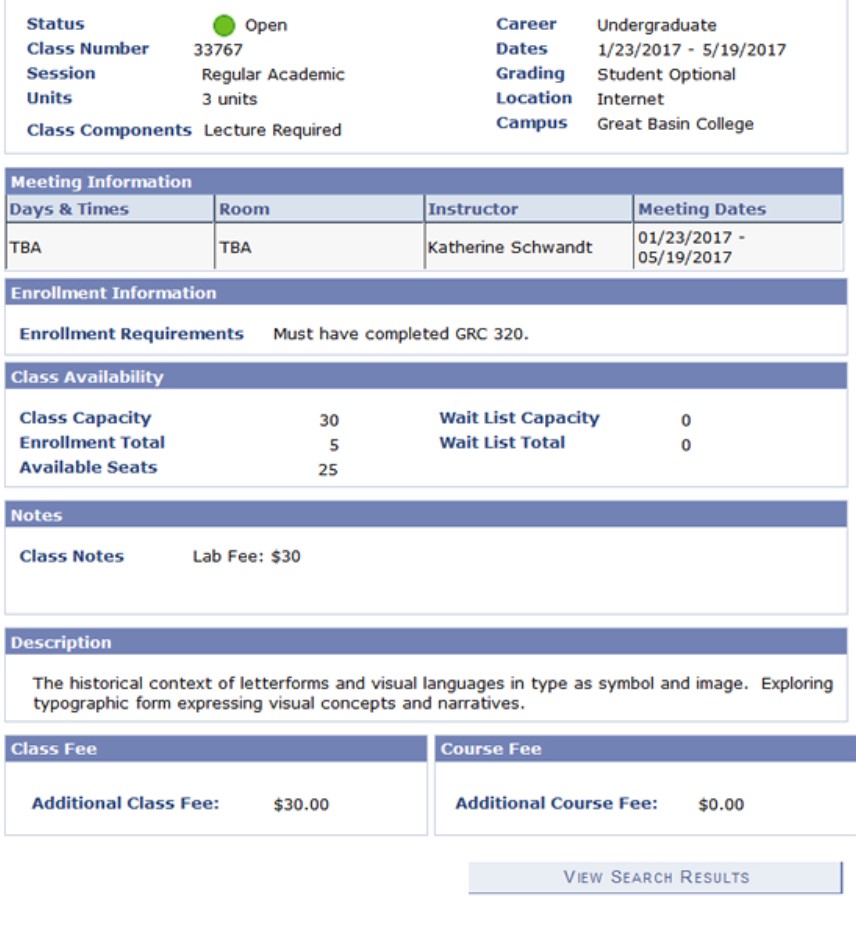
Detail View of a Specific Class
The details for the class and section you selected will now be displayed.
You have placed classes in the MyGBC shopping cart so how do you complete the enrollment process?
How Do I Enroll in GBC Classes?
1. Go to the MyGBC Self-Service Center.
2. Log into the MyGBC Self-Service Center with your new NSHE User ID.
What is My User ID for the MyGBC Self-Service Center?
Your username for MyGBC will allow you to sign on to the Self-Service Center for any institution of the Nevada System of Higher Education (NSHE). It is your universal NSHE User ID.
New applicants to GBC are sent their MyGBC User ID and preliminary password as soon as their application is processed. If you have not attended classes during the past three years, you will need to submit a new application for admission. If you have previously logged into MyGBC, entered your correct e-mail address, and completed your security question, you can retrieve a forgotten User ID by clicking the Forgot your User ID? link on the main login page.
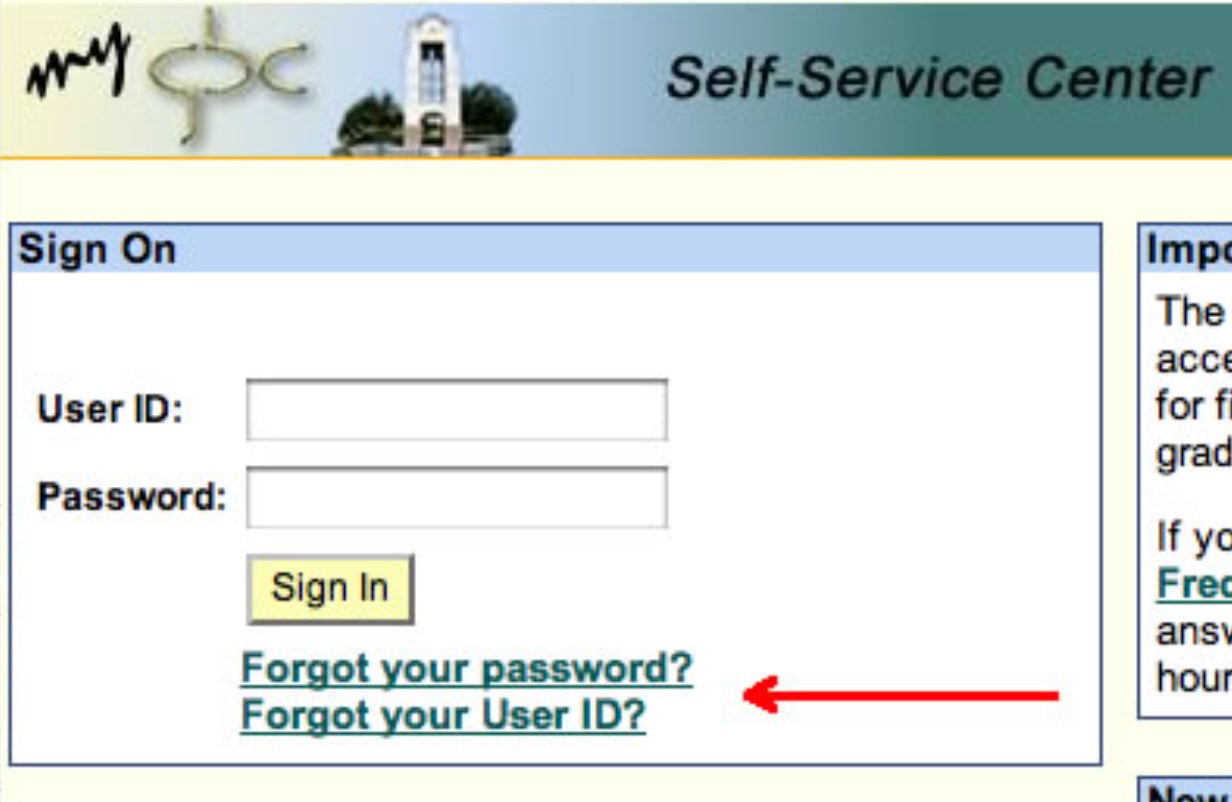
If you did not receive your MyGBC User ID or cannot retrieve it, please call 775-327-2170 during regular business hours, or send an e-mail to admissions@gbcnv.edu.
If you email, be sure to include the following information:
- Your full name
- Your date of birth
- Your email address
- Your telephone number (necessary if the e-mail address provided does not agree with the one on file for you at GBC)
What is My Password for MyGBC Self-Service Center?
You should have received your initial password for logging into MyGBC by email at the same time as you received your User ID -- that is, shortly after applying for admission.
You will not be able to change this temporary password and will only be used for initial enrollment into classes. Once you enroll into credit classes, you will receive an email with your GBC email (username) and instructions with your default password.
Password Security is very Important!
Passwords are used to protect your user accounts so it is important to create strong passwords and to keep those passwords secure. If you share your password, you’re sharing your identity. Here are some helpful tips on keeping your passwords secure:
- Do not tell others your passwords – including co-workers or supervisors.
- Protect any recorded passwords - do not leave them anywhere you would not leave the information they protect. Do not write it down at all, if possible.
- Do not check “remember my password” on any website.
- Never provide your password over e-mail or based on an e-mail request – the Help Desk will NEVER request your password via e-mail. Many of these requests can appear to come from a legitimate source but are fraudulent.
- Change your password regularly – just like fall and spring cleaning, about every 6 months.
- Change your password if you have reason to believe it has been compromised.
- Do not type passwords on computers that you do not control – such as internet cafes, computer labs, airport lounges, or others that have open WiFi access.
- Do not let others use your account – this includes you logging in for them.
- Be sure no one is watching when you enter your ID and password.
- Be sure to log out of all programs prior to closing the web browser and be sure to close the web browser before logging off the computer. Do not walk away from a computer until you are certain that you have logged off.
3. Click the MyGBC Self-Service Center link.
4. Click Enroll link.
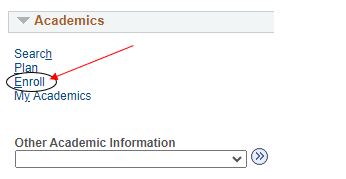
5. If more than one semester is available for enrollment, you will be prompted to select a term. Then click the Continue button.
6. Enter the Class Nbr of the class you want to add, then click Enter or click the Search button to search for a class.
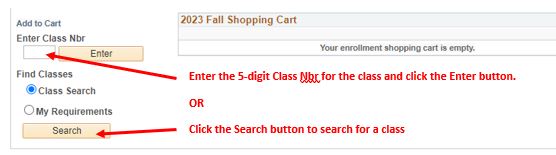
Note: Please review Search or Browse for Classes if finding class numbers proves difficult.
7. Look at the class information. Make sure that you can meet any special requirements listed. Finally, click Next to verify your selection.
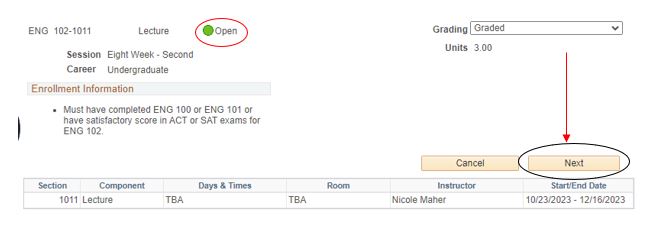
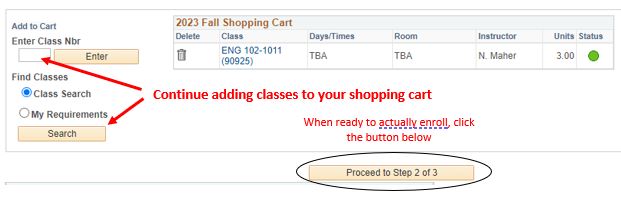
8. You have added a class to your shopping cart. However, you are not yet enrolled in the class. You can continue adding classes to your shopping cart. When ready to
confirm your enrollment in the classes in your shopping card, click the Proceed to Step 2 of 3 button.
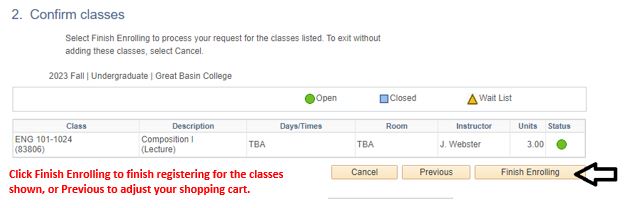
9. To complete the education process, click the Finish button.
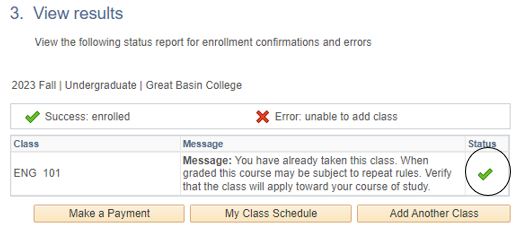
10. If done successfully the course will have a check mark next to it showing successful
completion of enrollment.
IMPORTANT! Registering for a class obligates you to pay for it even if you never attend, unless you formally drop the class by the 100% refund deadline.
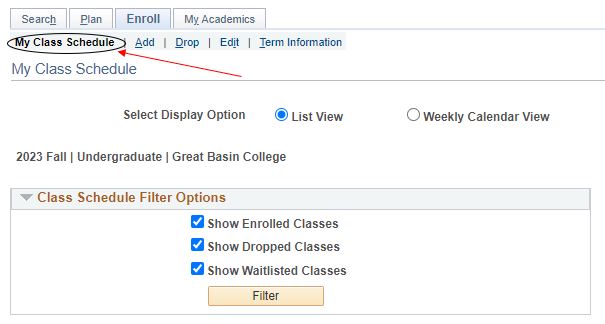
11. You can now click the My Class Schedule tab at the top of the page to view all the classes in which you are formally enrolled.
How Do I Drop Classes?
1. Log into the MyGBC Self-Service Center. Click the Student Center button in the middle of the page.
2. Click the Enroll link.
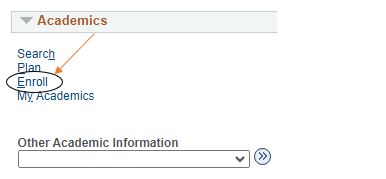
3. Click the Drop link on the enrollment page.
 4. If you are currently enrolled in more than one term, you'll be asked to select
the term. Then click the Continue button at bottom.
4. If you are currently enrolled in more than one term, you'll be asked to select
the term. Then click the Continue button at bottom.
5. Click the check boxes next to all the classes you want to drop. Then click the Drop Selected Classes button.
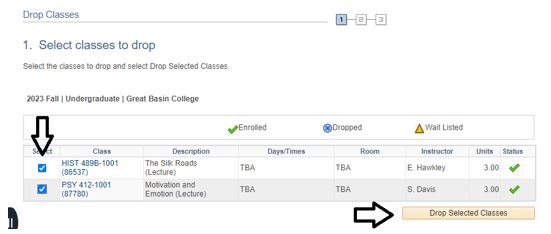
6. Click the Finish Enrolling button on the next screen that appears.
How Do I Pull a Class Schedule?
1. Log into the MyGBC Self-Service Center. Click the Student Center button in the middle of the page.
2. Click on the box under “Other Academic Information”. Select Class Schedule.
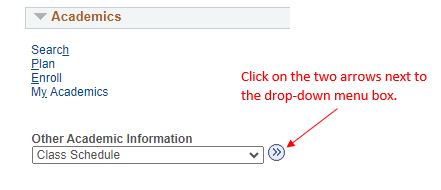
3. You can scroll down and click Printer Friendly Page on the bottom of the page to print your schedule.
Please note that if you need any assistance with enrollment through the MyGBC Self-Service Center please contact Admissions and Records at: admissions@gbcnv.edu or 775-327-2059.
How do I View the GBC Class Schedule?
Viewing the Great Basin College class schedule is easy in the MyGBC Self-Service Center. The MyGBC class schedule is searchable, shows the number of seats currently available for the class, presents valuable information such as course number, instructor, days, times, room, class status, and more!
Searching
-
Begin Search
-
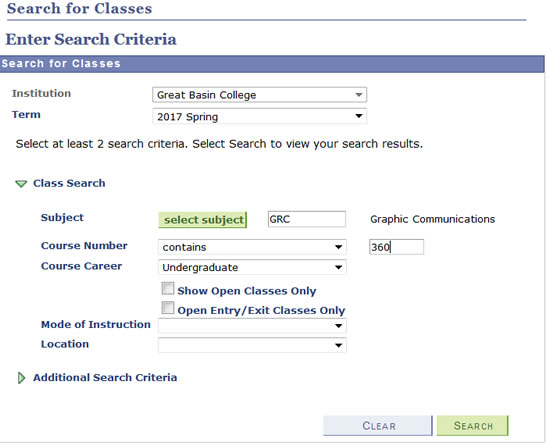
- Select "Great Basin College" for the Institution
- Select the available "Term" you are interested in
- Click the "select subject" button or enter a subject abbreviation
- Enter the course number or leave blank to see all classes for the subject
- Click "Additional Search Criteria" to filter for specific days, times, locations, etc
- Click the "Search" button when you are ready to search.
-
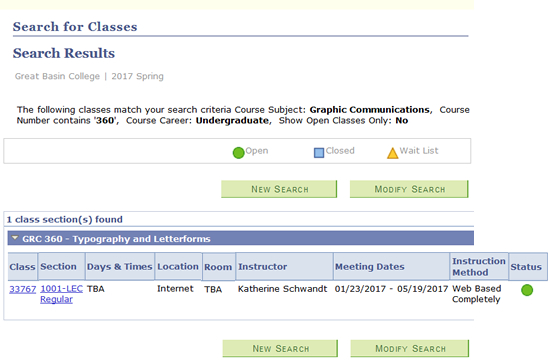
Results of Search
Your search results will now be displayed.
Click the "Section" link under the "Section" column of the class section you are interested in for specific class detail information. Depending upon your search criteria, you may retrieve more than one "Search for Classes" results.
-
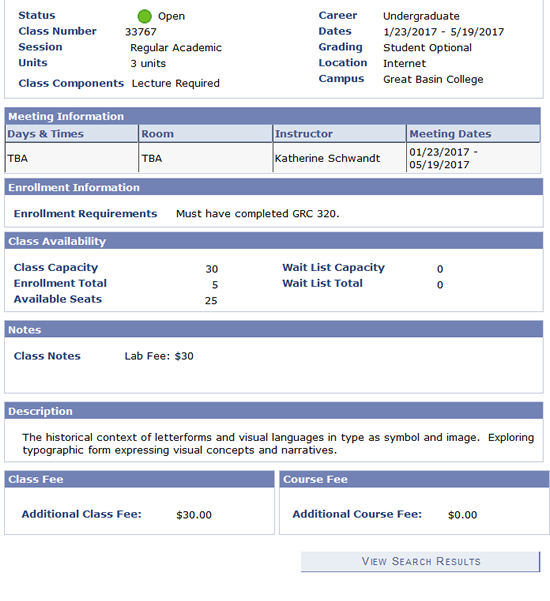
Detail View of a Specific Class
The details for the class and section you selected will now be displayed.
How Do I Complete the Enrollment Process?
You have placed classes in the MyGBC shopping cart so how do you complete the enrollment process?
1. Log into the MyGBC Self-Service Center.
2. Click the Enrollment Shopping Cart link.

3. Click the check boxes next to all the classes in your shopping cart for which you are ready to enroll. Then click the Enroll button.

4. Click the Finish Enrolling button on the next screen that appears.
How Do I View and Pay My Bill?
1. Go to the MyGBC Self-Service Center and log in.
2. Click the Account Inquiry link to calculate the amount you owe. Important: Be aware that fees are subject to change until classes actually commence.
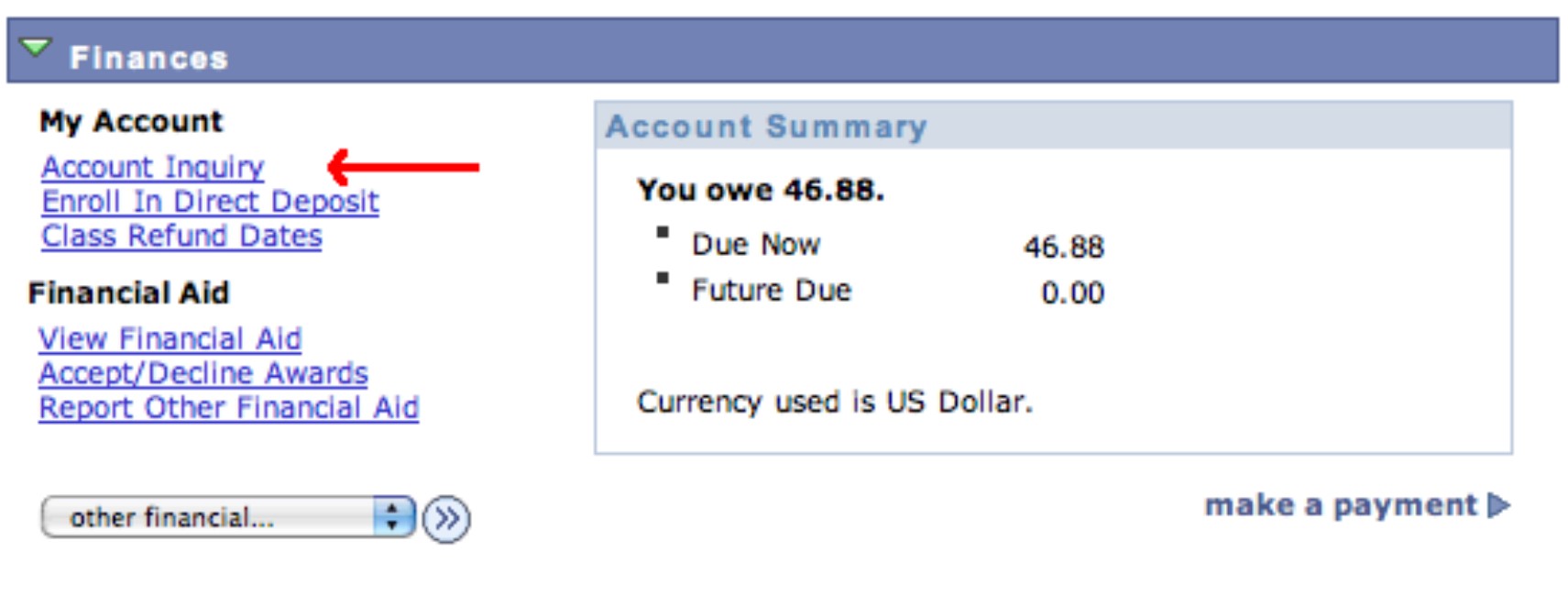
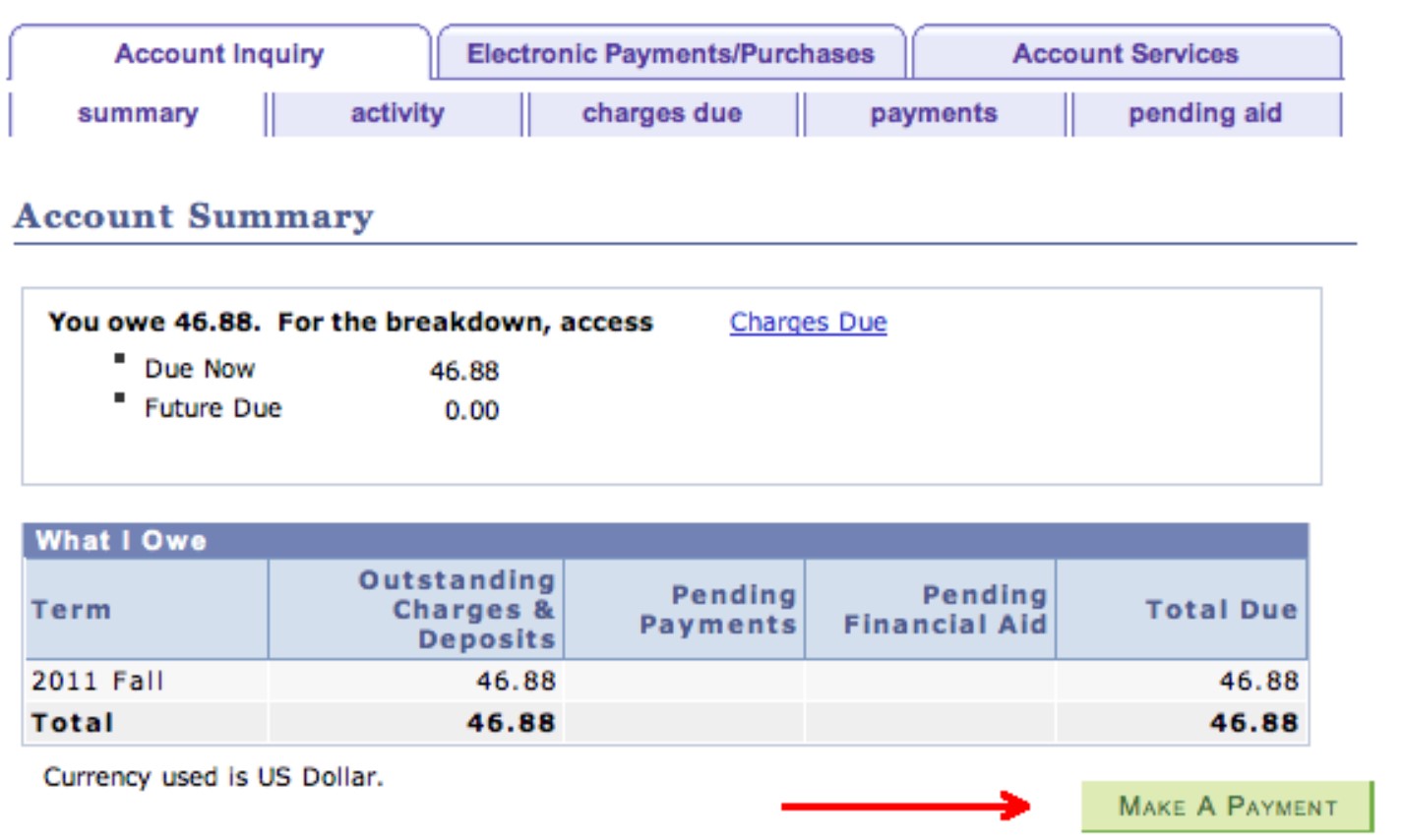
3. Click the Make a Payment button to make a payment.
How Do I Drop Classes?
1. Log into the MyGBC Self-Service Center. Click the Student Center button at left.
2. Click the Enroll link.
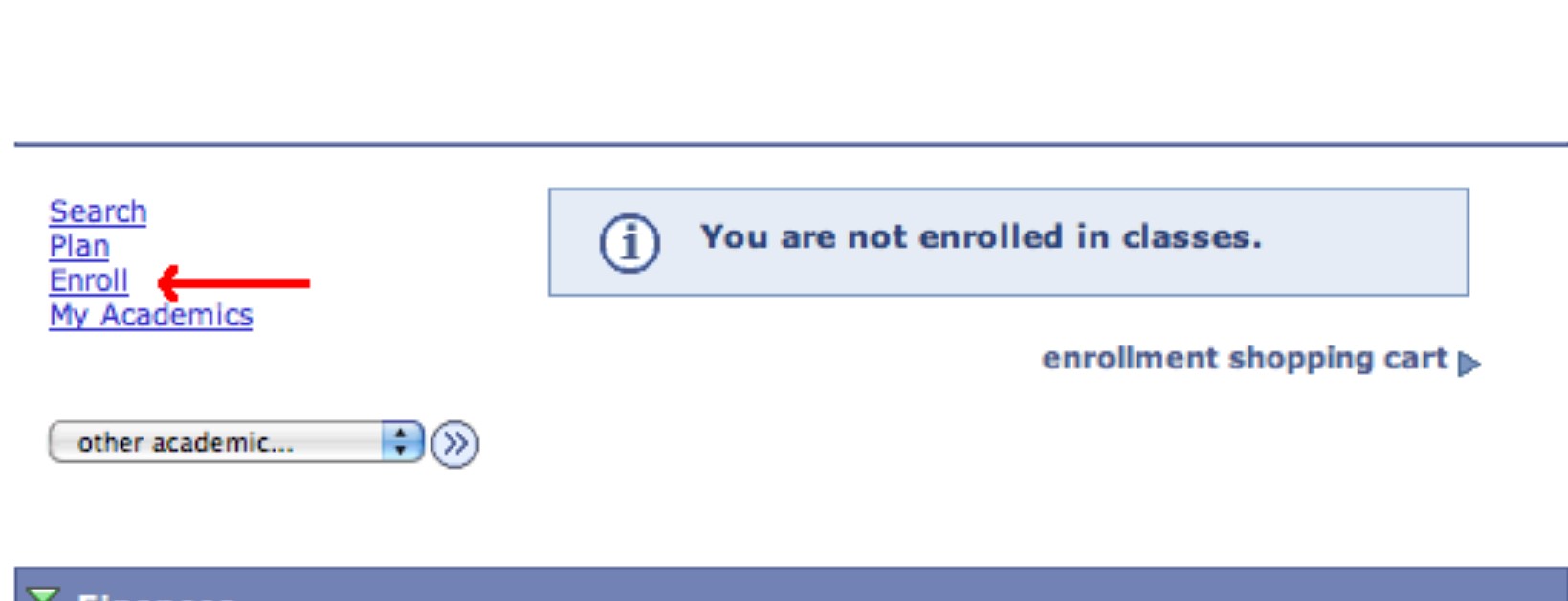
3. Click the Drop link on the enrollment page.
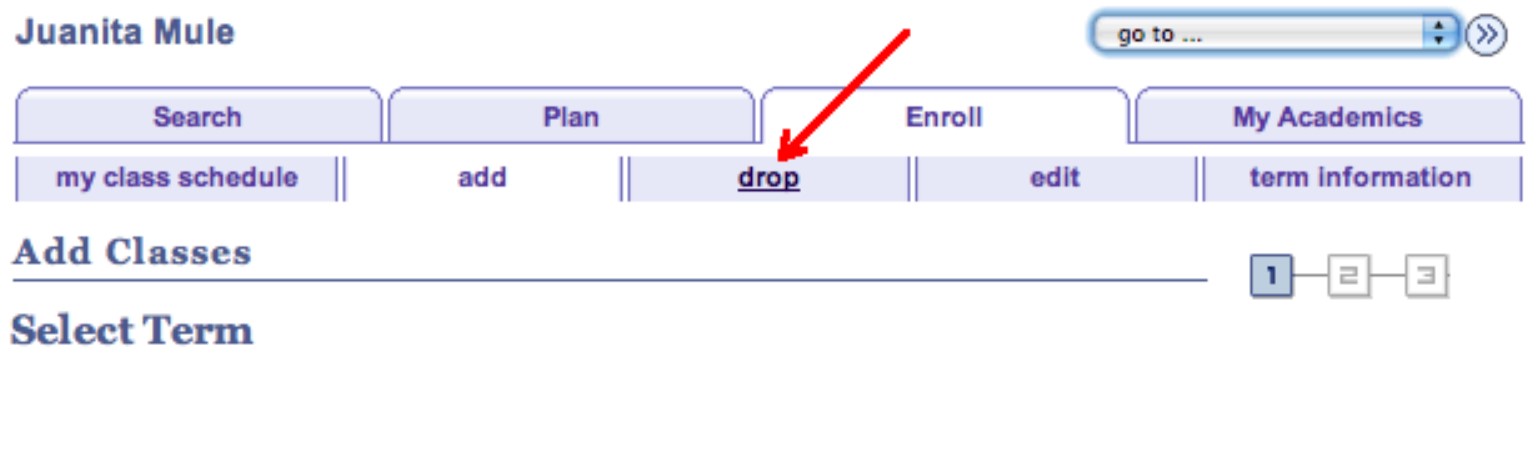
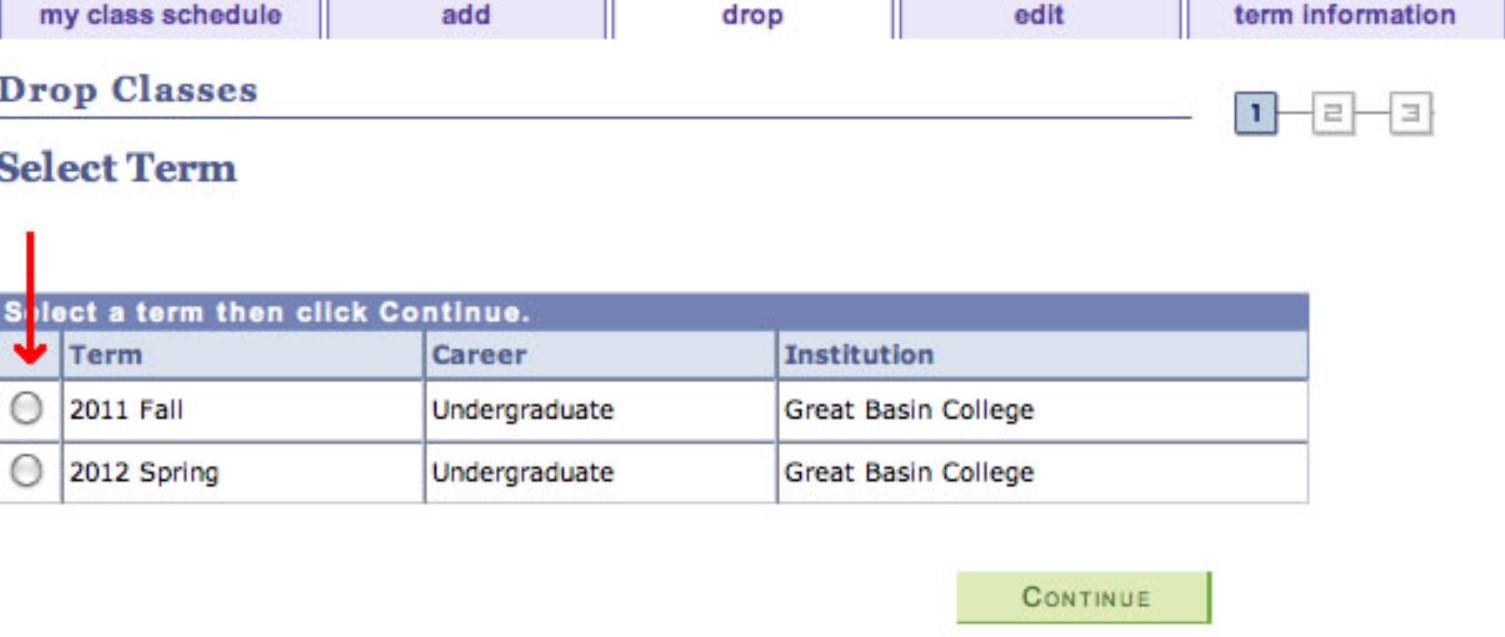
4. If you are currently enrolled in more than one term, you'll be asked to select the term. Then click the Continue button at bottom.
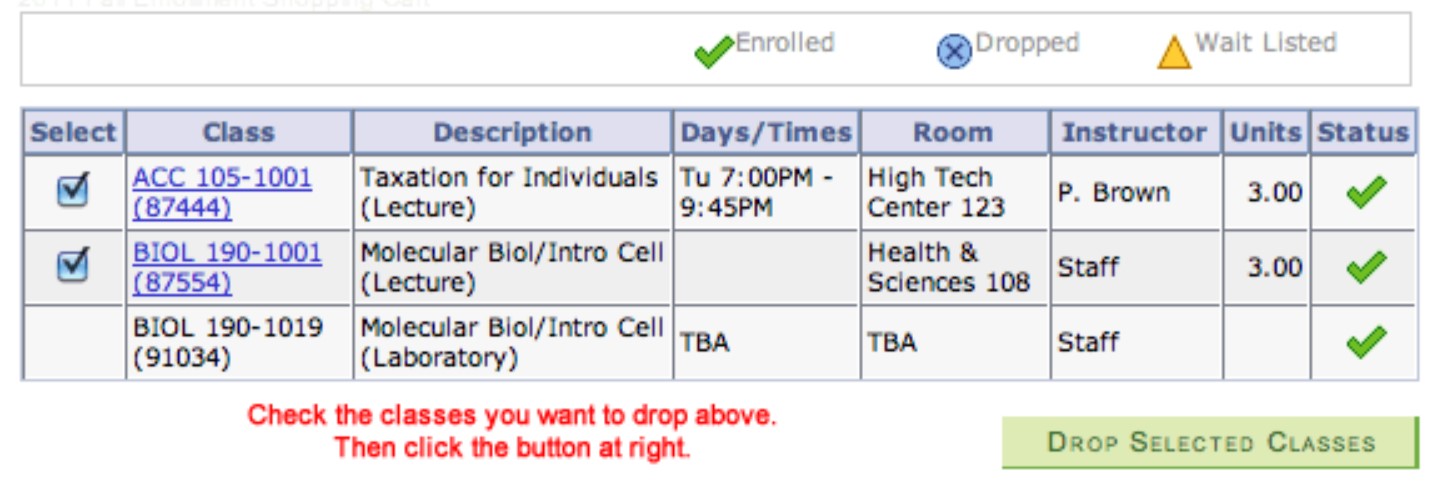
5. Click the check boxes next to all the classes you want to drop. Then click the Drop Seleccted Classes button.
6. Click the Finish Enrolling button on the next screen that appears.
Why aren't My Payments Being Accepted?
Your Browser's Cache
Your browser is the program you use on your own computer to access the Internet. The most common browsers are Microsoft's Edge, Mozilla's Firefox, Apple's Safari, and Google's Chrome.
Your browser caches (stores) web pages you have visited in the past for quick retrieval in the future on your computer. This caching function can sometimes interfere with your ability to make payments. To fix this situation, you will need to clear your browser's cache. Instructions can be found here at the wikiHow site.
MyGBC Student Resources
- GBC Home Page
- GBC Bookstore
- Calendar
- Fees and Tuition
- Waitlist
- Financial Aid
- Faculty and Staff Directories and Email Addresses
- Transfer Students
- Problems Making Payments: If you are unable to make a payment, you may need to clear your browser's cache. Click Here for instructions
Learn More About "15 to Finish"
Contact
