Formal Instructions on how to Enroll and Drop Courses, and how to Obtain a Class Schedule through the MyGBC Self-Service Center
You have placed classes in the MyGBC shopping cart so how do you complete the enrollment process?
- Go to the MyGBC Self-Service Center via Myapps
- Click the Student Center button.
- Click Enroll link.
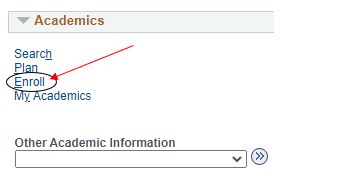
- If more than one semester is available for enrollment, you will be prompted to select a term. Then click the Continue button.
- Enter the Class Nbr of the class you want to add, then click Enter or click the Search button to search for a class.
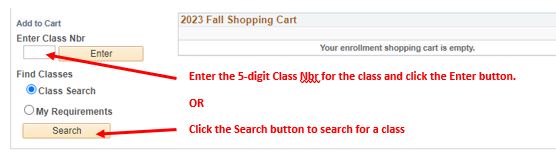
Note: Please review Search or Browse for Classes if finding class numbers proves difficult.
- Look at the class information. Make sure that you can meet any special requirements
listed. Finally, click Next to verify your selection.
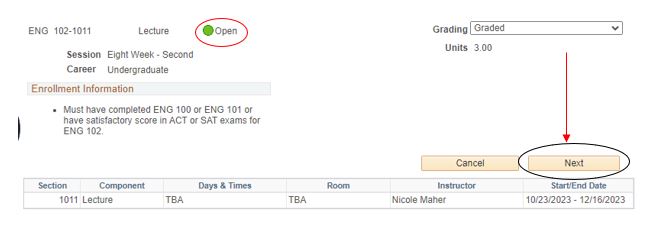
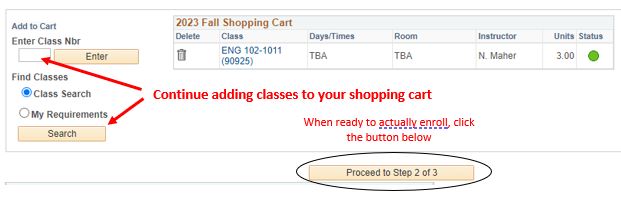
- You have added a class to your shopping cart. However, you are not yet enrolled in the class. You can continue adding classes to your shopping cart. When ready to
confirm your enrollment in the classes in your shopping card, click the Proceed to Step 2 of 3 button.
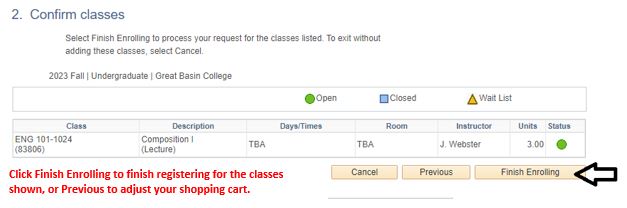
- To complete the education process, click the Finish button.
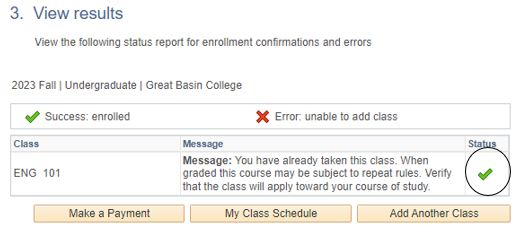
- If done successfully the course will have a check mark next to it showing successful
completion of enrollment.
IMPORTANT! Registering for a class obligates you to pay for it even if you never attend, unless you formally drop the class by the 100% refund deadline.
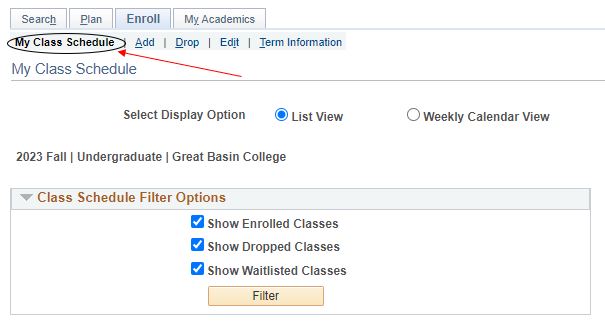
- You can now click the My Class Schedule tab at the top of the page to view all the classes in which you are formally enrolled.
- Log into the MyGBC Self-Service Center. via your Myapps Click the Student Center button in the middle of the page.
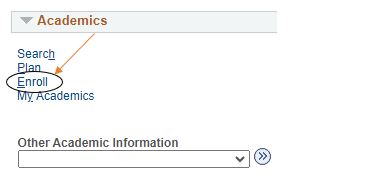
- Click the Enroll link.
- Click the Drop link on the enrollment page.

- If you are currently enrolled in more than one term, you'll be asked to select the term. Then click the Continue button at bottom.
- Click the check boxes next to all the classes you want to drop. Then click the Drop Selected Classes button.
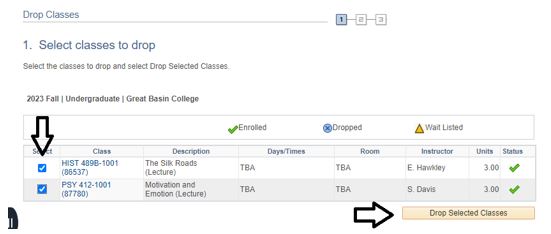
- Click the Finish Enrolling button on the next screen that appears.
- Log into the MyGBC Self-Service Center via Myapps. Click the Student Center button in the middle of the page.
- Click on the box under “Other Academic Information”. Select Class Schedule.
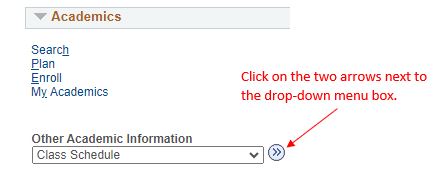
- You can scroll down and click Printer Friendly Page on the bottom of the page to print your schedule.
Please note that if you need any assistance with enrollment through the MyGBC Self-Service Center please contact Admissions and Records at: admissions@gbcnv.edu or 775-327-2059.
Contact
Great Basin College
1500 College Parkway
Elko, Nevada (USA) 89801
775-327-2170
